


What Is AWS HealthOmics?
AWS HealthOmics is a HIPAA-eligible service that accelerates clinical diagnostic testing, drug discovery, and agricultural research by managing the infrastructure behind bioinformatics workflows.
HealthOmics supports industry-standard workflow languages, including WDL, Nextflow, and CWL. It can scale bioinformatics infrastructure to support data from large testing volumes while providing more predictable per-sample costs.
By managing compute resources and workflow engines, HealthOmics allows teams to focus more on scientific work and less on infrastructure operations.
Primary Use Cases
- Clinical diagnostics
- Drug discovery
- Agricultural research
Key Benefits
- Scale without unnecessary infrastructure complexity
- Focus on science rather than infrastructure management
- Use built-in compliance-oriented capabilities
Prerequisites for Running a Bioinformatics Workflow on AWS HealthOmics
There are three main prerequisites:
- Create an Amazon S3 bucket to store input reads and collect workflow outputs.
- Create an Amazon ECR repository to store the Docker images used by the workflow.
- Create an IAM service role that allows AWS HealthOmics to access the required S3 and ECR resources.
You can use this demo Nextflow pipeline or provide your own workflow.
How to Deploy a Nextflow Pipeline on AWS HealthOmics
Step 1: Open AWS HealthOmics
Sign in to the AWS Management Console, search for HealthOmics, and open the service.
In the left navigation, select Private workflows.
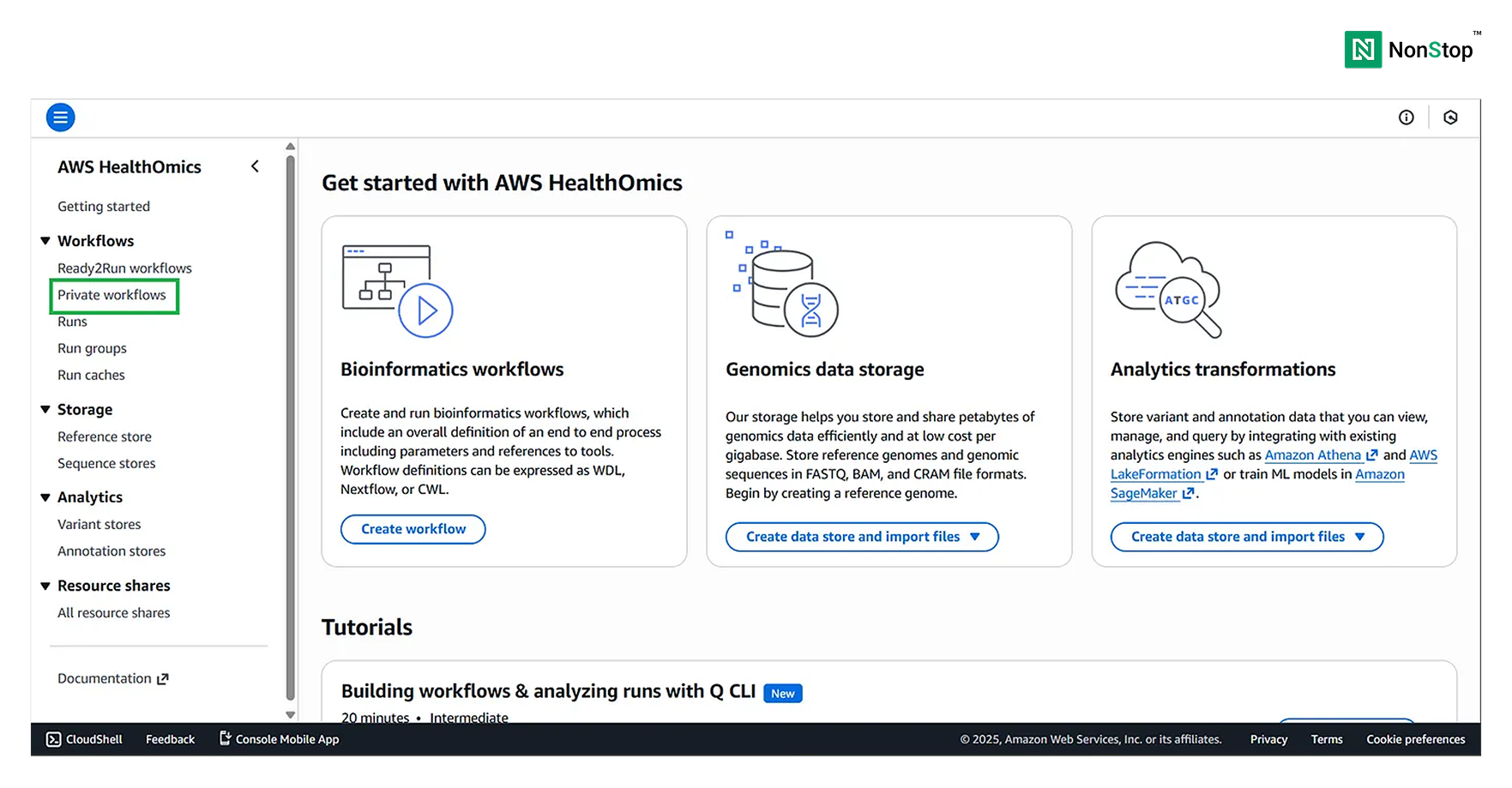
AWS HealthOmics also provides Ready2Run workflows that can be executed directly against your data. Pricing information is provided with each workflow.
Under the storage section, HealthOmics also provides Reference Stores and Sequence Stores. These can be used to store reference data and genomic sequences.
This tutorial uses Amazon S3 instead.
Step 2: Create a Private Workflow
Scroll to the private workflows section and select Create workflow.
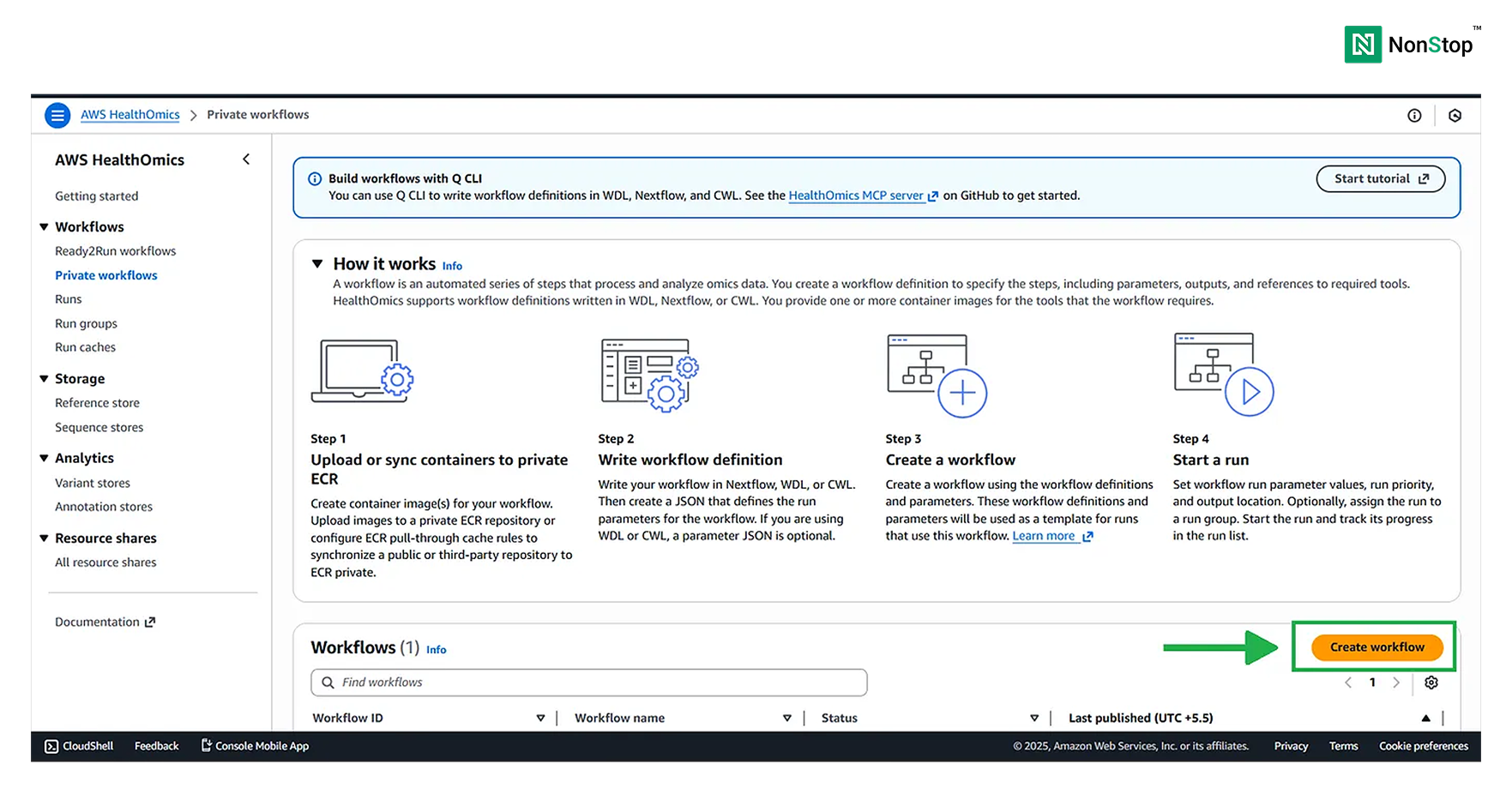
Step 3: Configure the Workflow
Creating a bioinformatics workflow in AWS HealthOmics involves four configuration stages.
Fields marked as optional can be skipped when they are not required.
Step 3.1: Define the Workflow
Provide a workflow name and, optionally, a description.
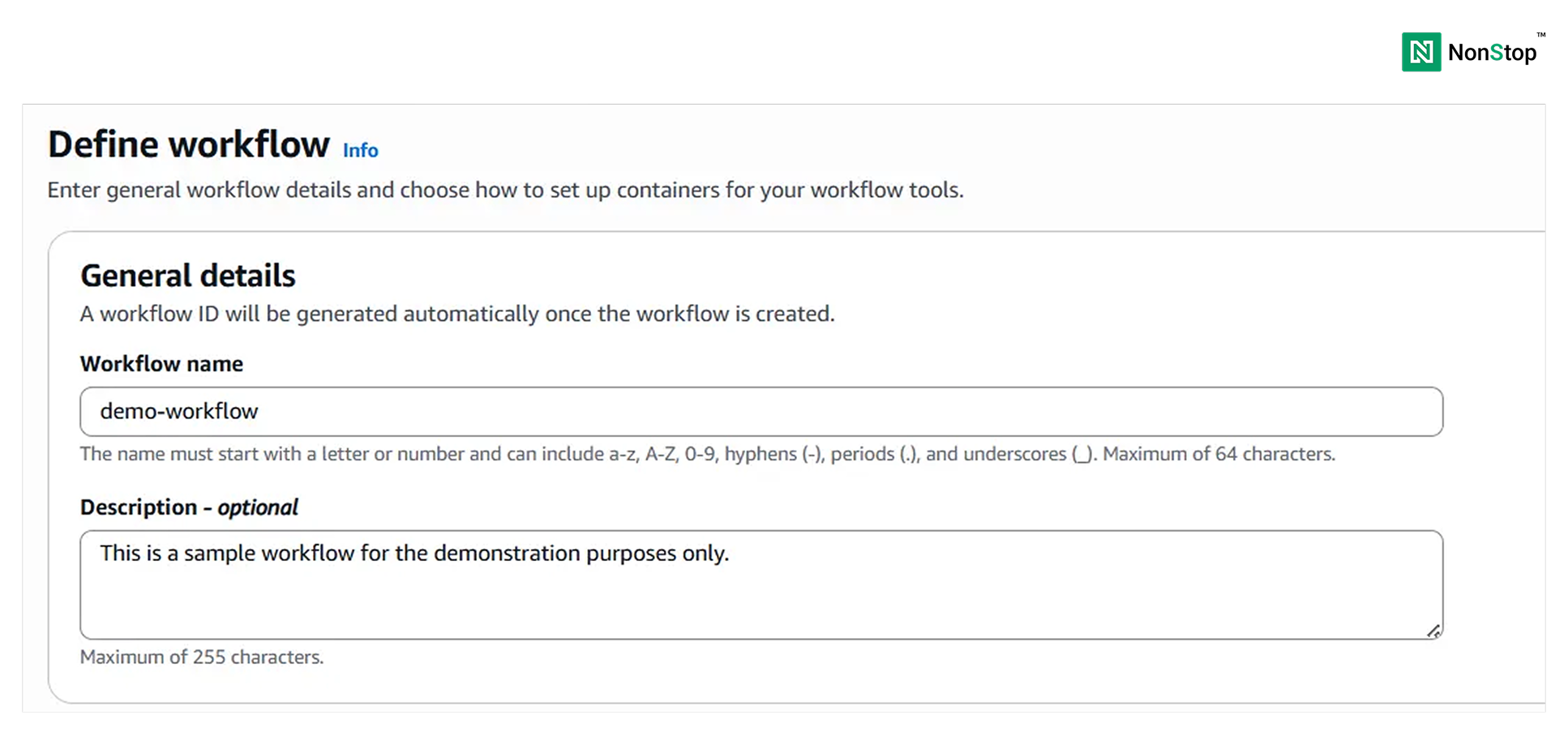
Select the workflow language. Although this setting is optional, selecting the correct language can reduce detection latency.
Next, select the workflow definition source. AWS HealthOmics supports Amazon S3, a Git repository, or direct upload from a local source.
This tutorial uses Amazon S3.
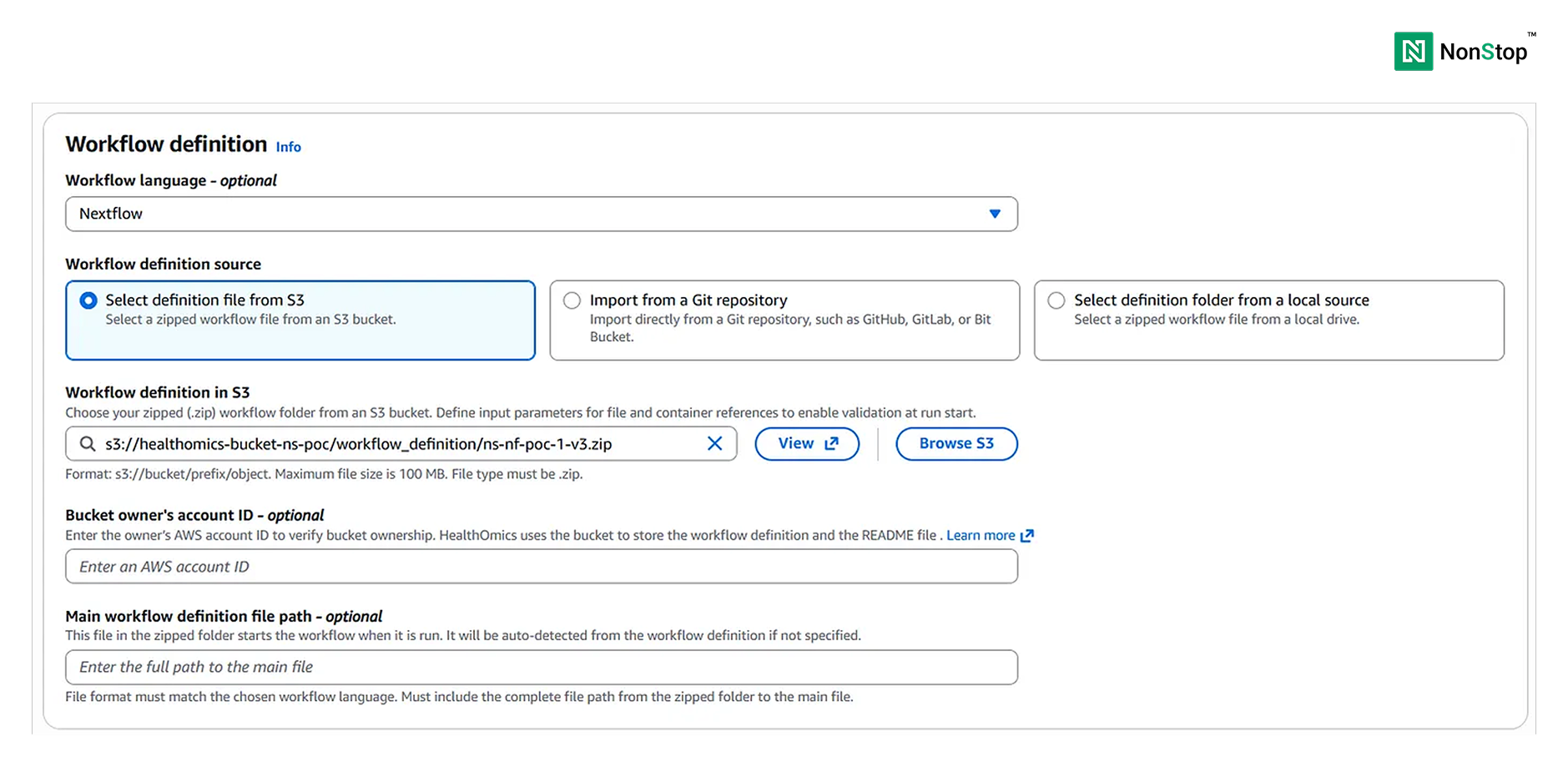
Select dynamic storage because this example does not require a large fixed storage allocation.
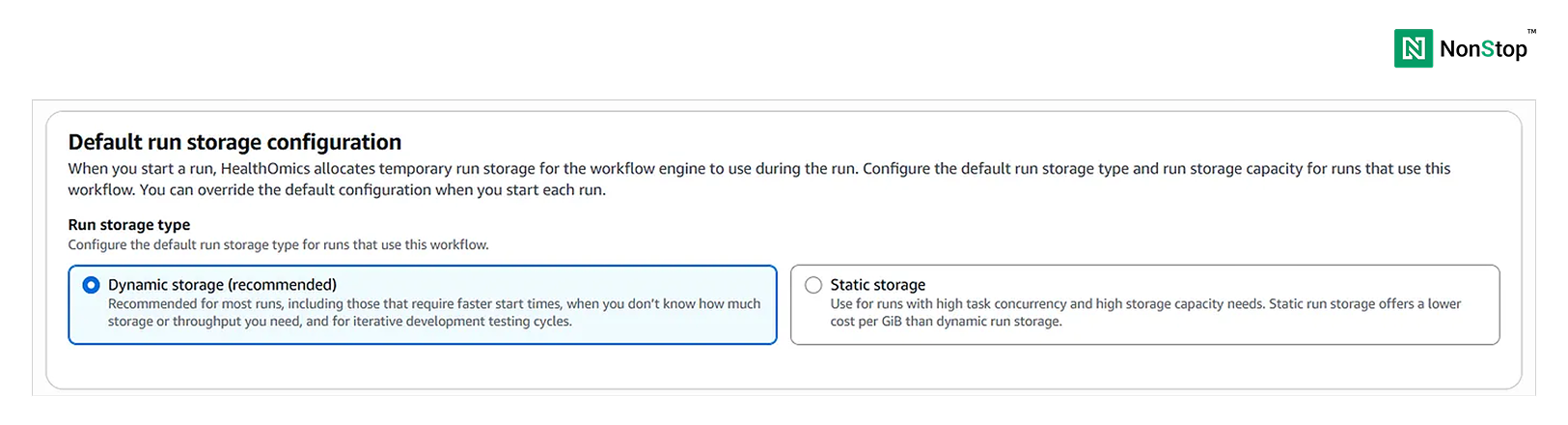
Leave the remaining optional fields blank unless the workflow requires them.
Step 3.2: Add Workflow Parameters
This step is optional. In this example, a parameter is used to pass the Amazon S3 path for the input reads.
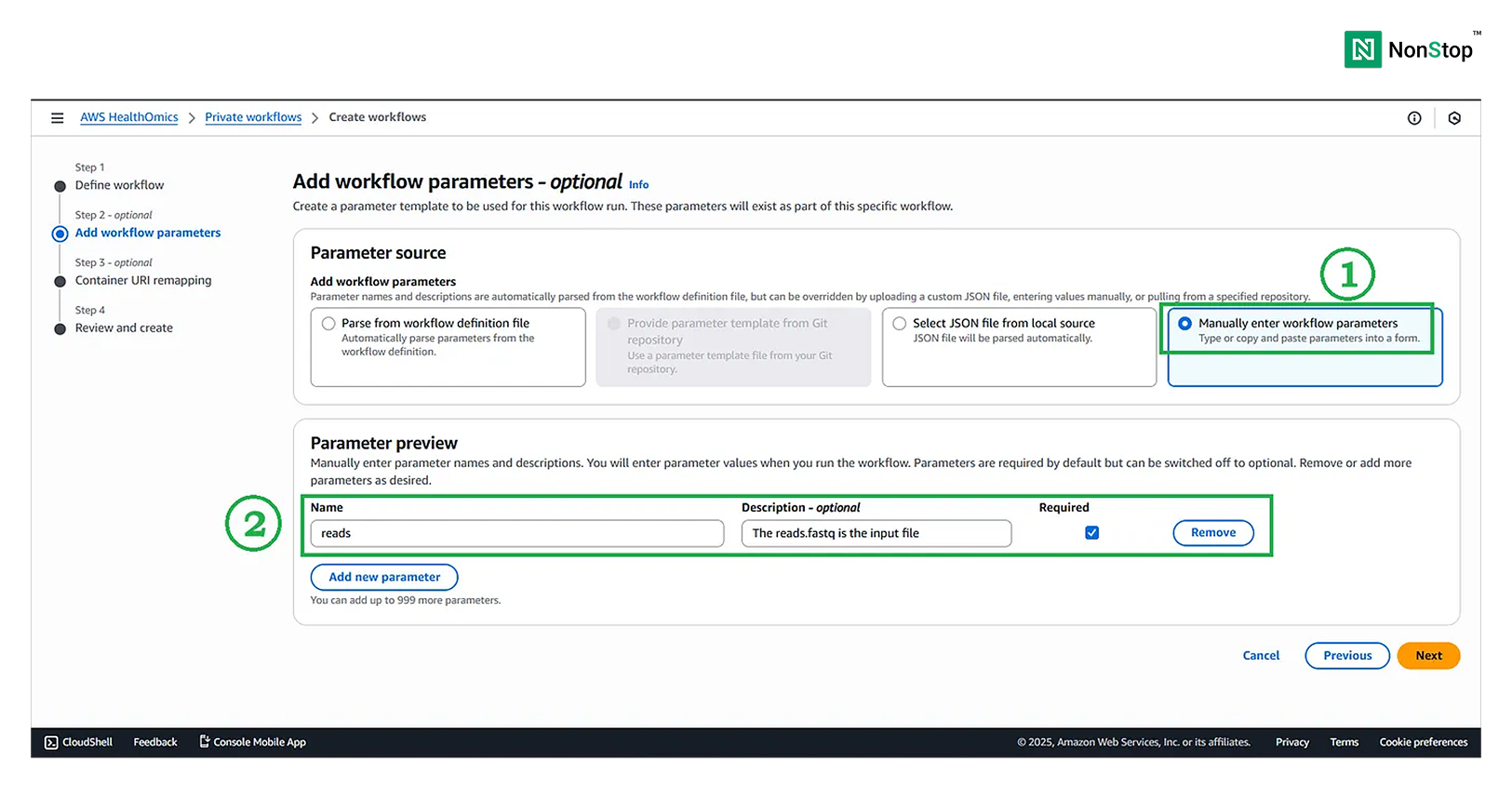
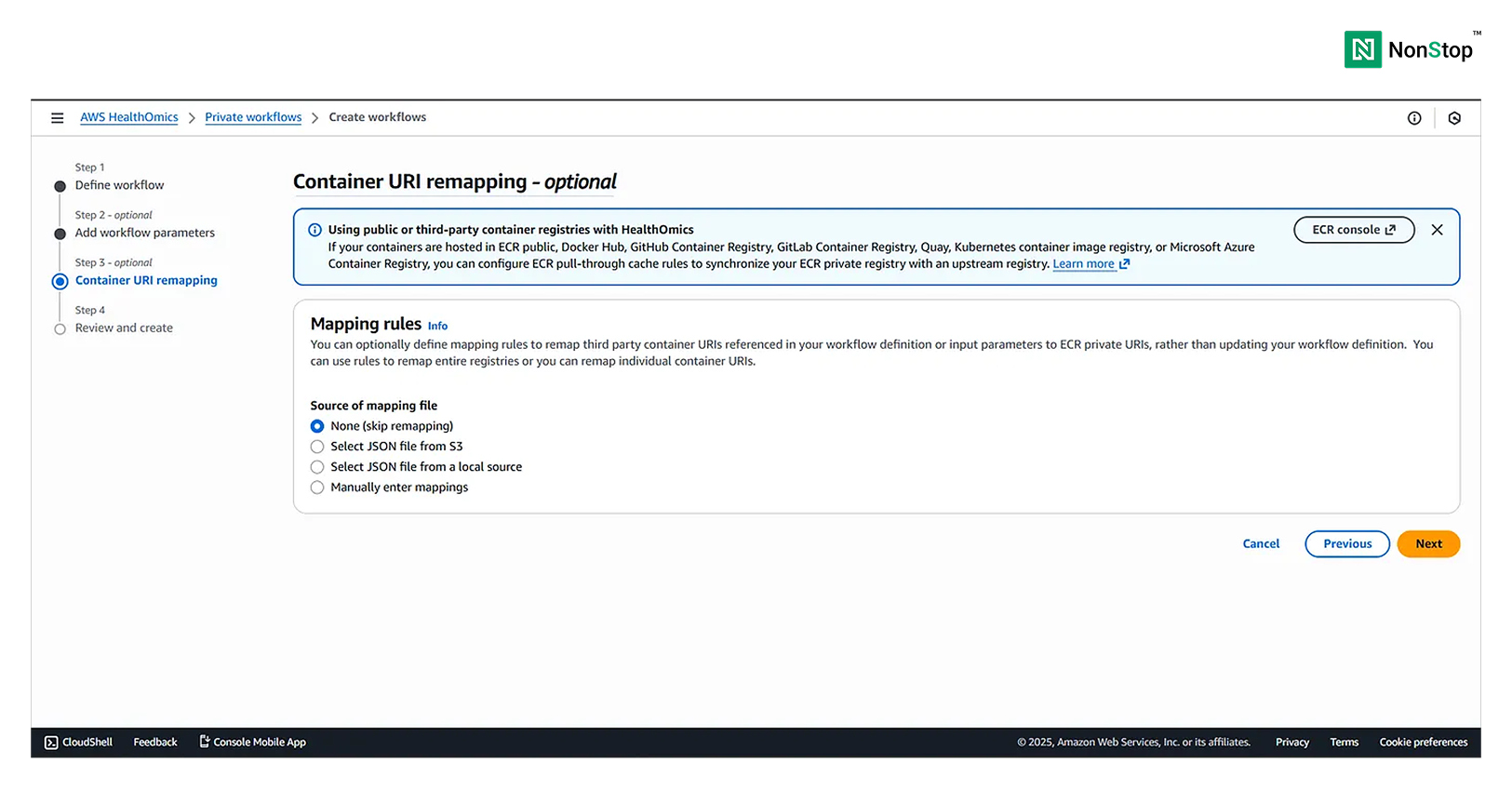
Step 3.3: Configure Container URI Remapping
This step is optional.
Select None for the mapping-file source because the required Docker images are already stored in Amazon ECR and referenced directly by the workflow source code.
Step 3.4: Review and Create the Workflow
Review the workflow configuration, scroll to the bottom, and select Create workflow.
AWS HealthOmics may take several minutes to prepare the workflow.
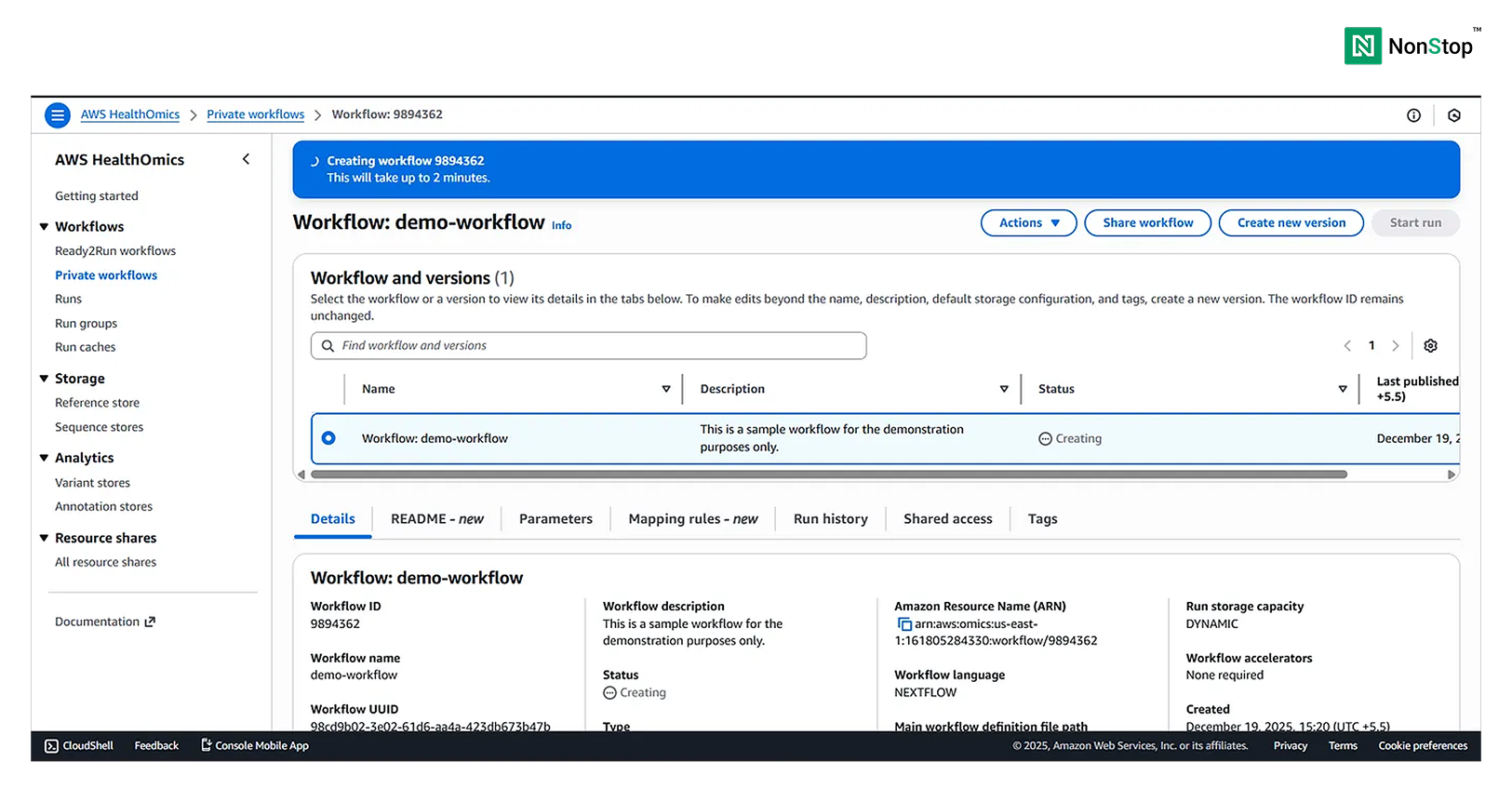
When the workflow is ready, HealthOmics displays a confirmation message.
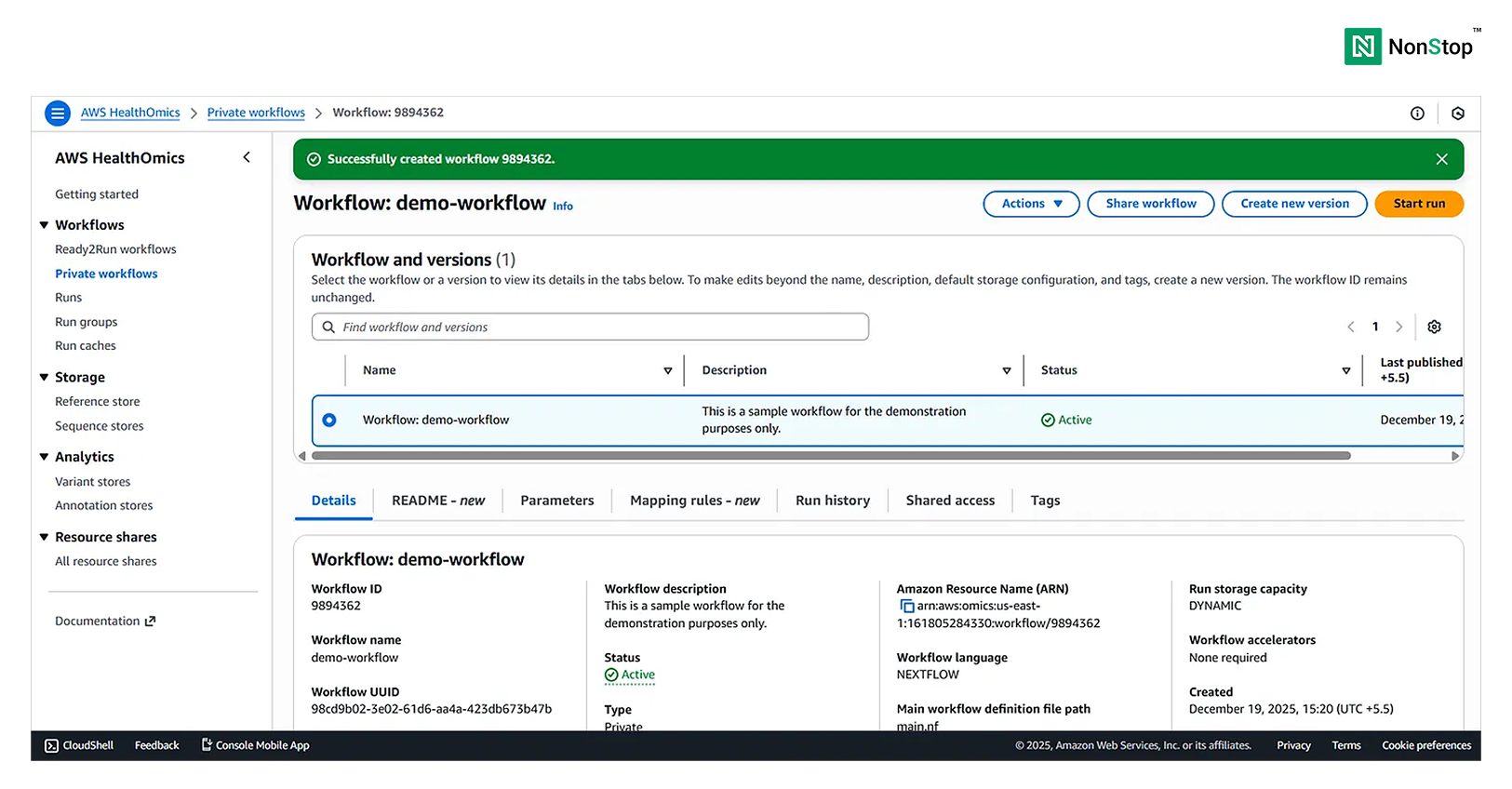
Step 4: Run the Workflow
After the workflow is ready, select Start run.
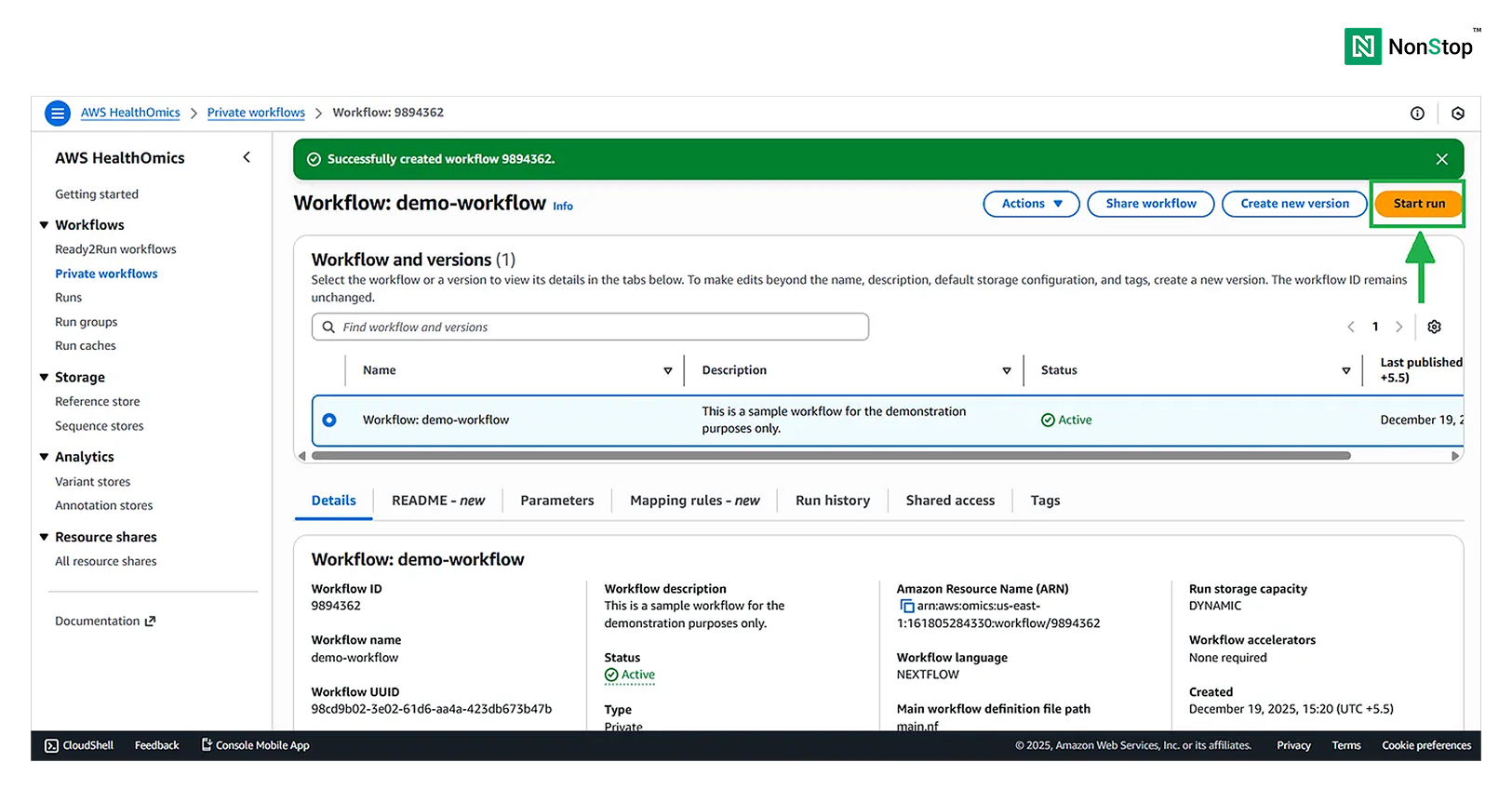
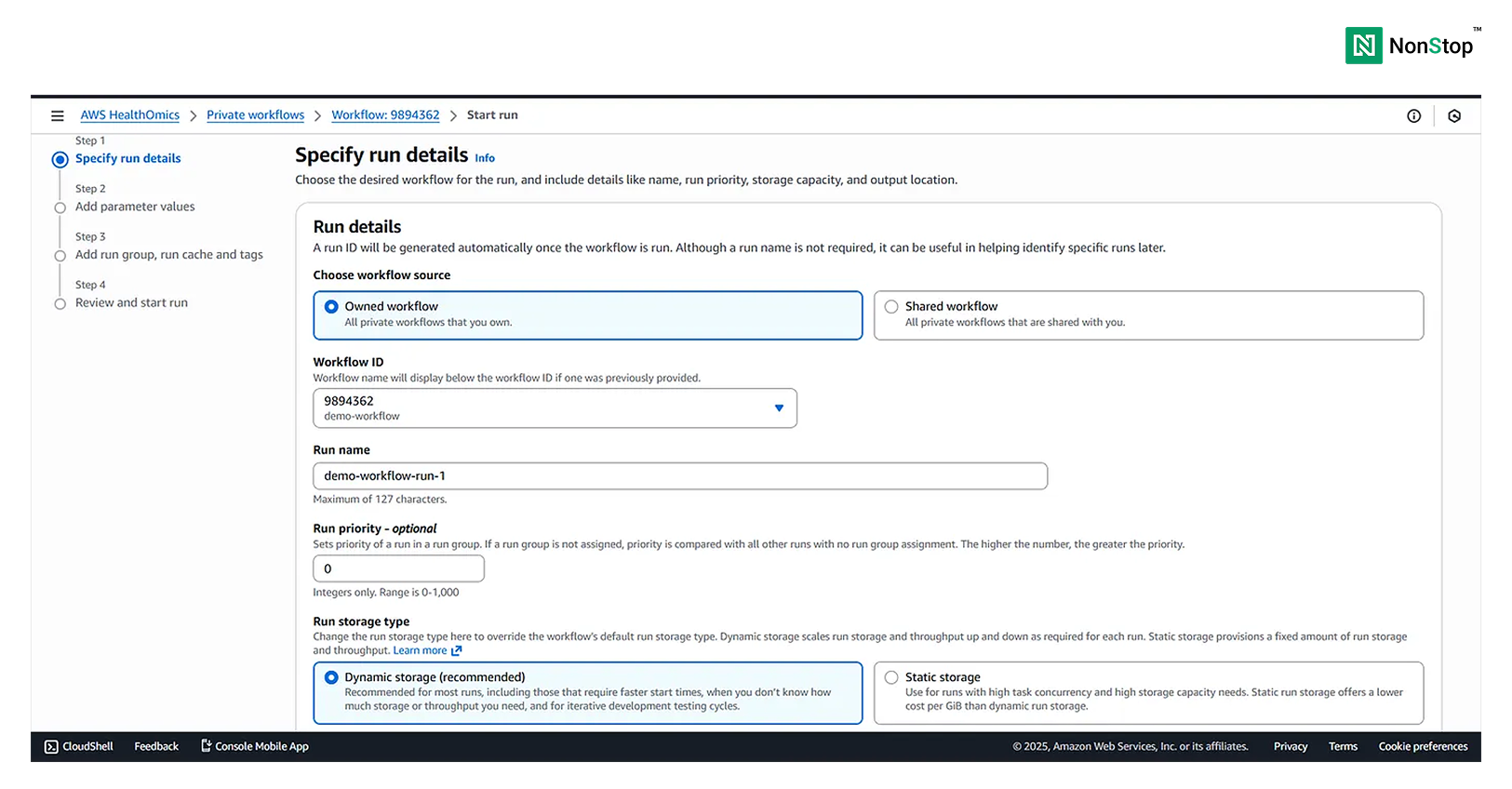
Running the workflow involves several configuration steps.
Step 4.1: Specify Run Details
Select Owned workflow because this tutorial uses the workflow created in the previous step.
Provide a name for the run and select dynamic storage.
Provide an Amazon S3 output destination and select an IAM service role that allows HealthOmics to access the required S3 resources.
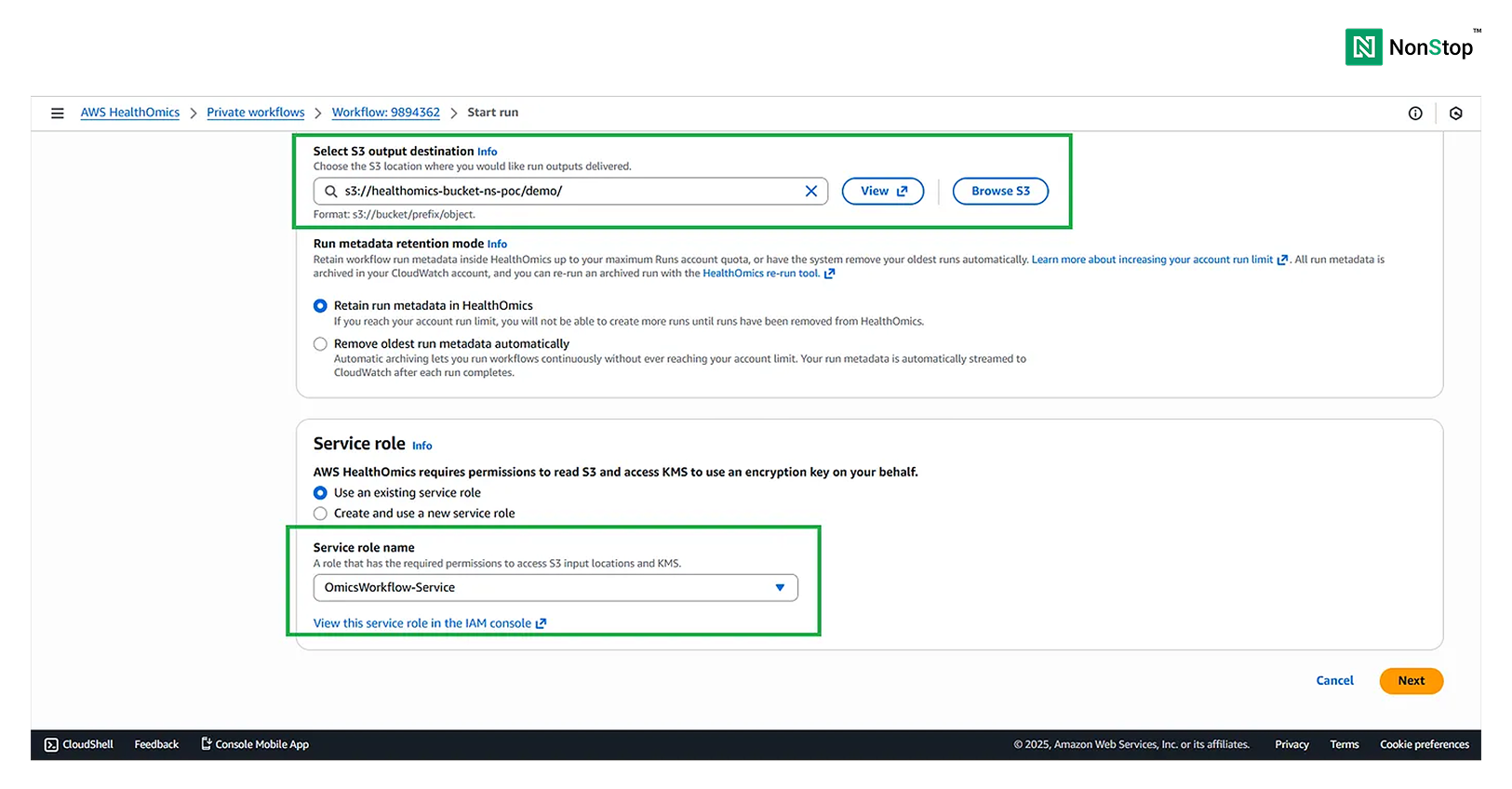
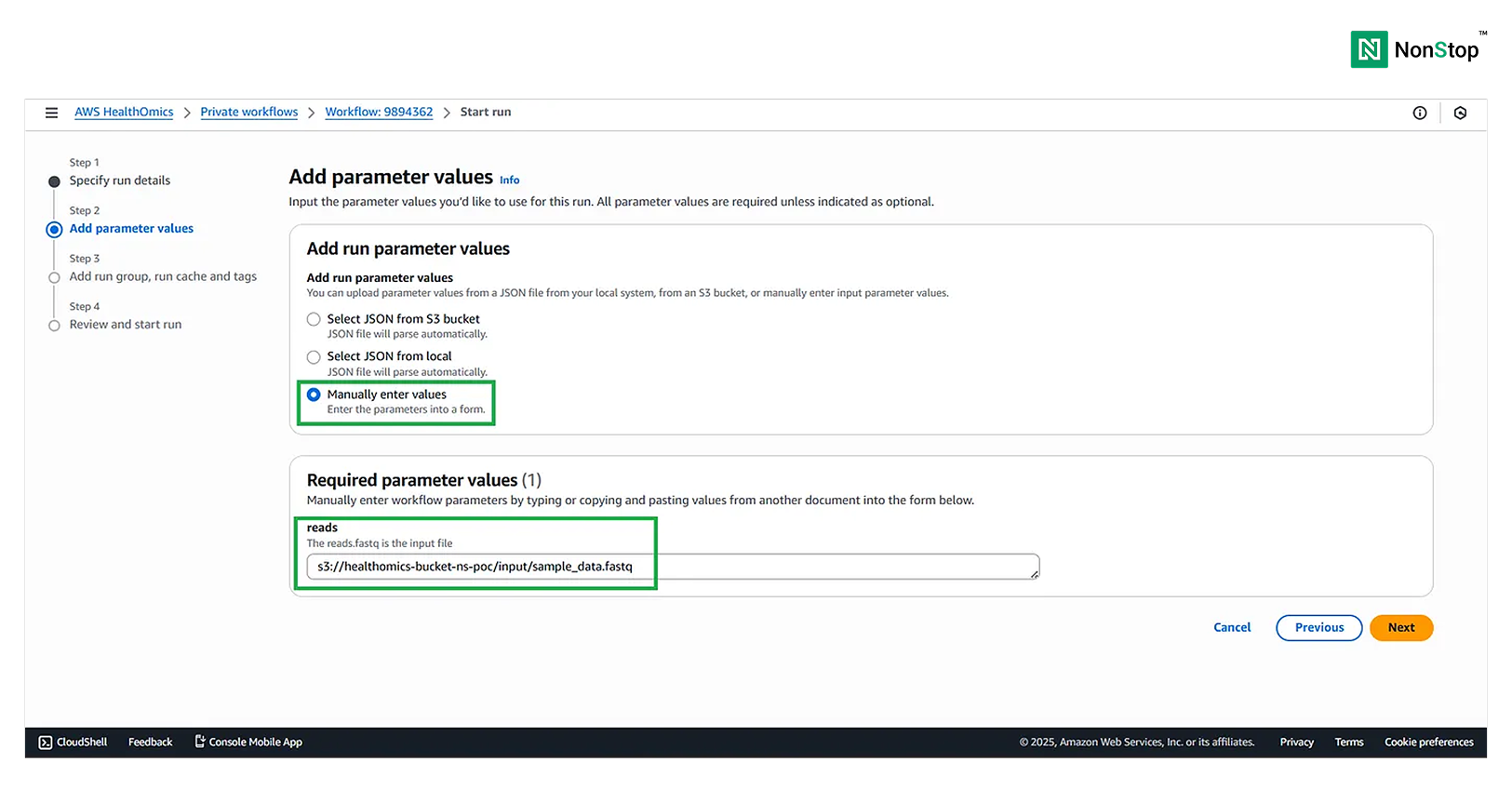
Step 4.2: Add Parameter Values
Choose the manual input option and provide the Amazon S3 path to the FASTQ input file.
Step 4.3: Add a Run Group, Run Cache, and Tags
This step is optional. Run groups, caching, and tags can help organize workflows and optimize larger production environments.
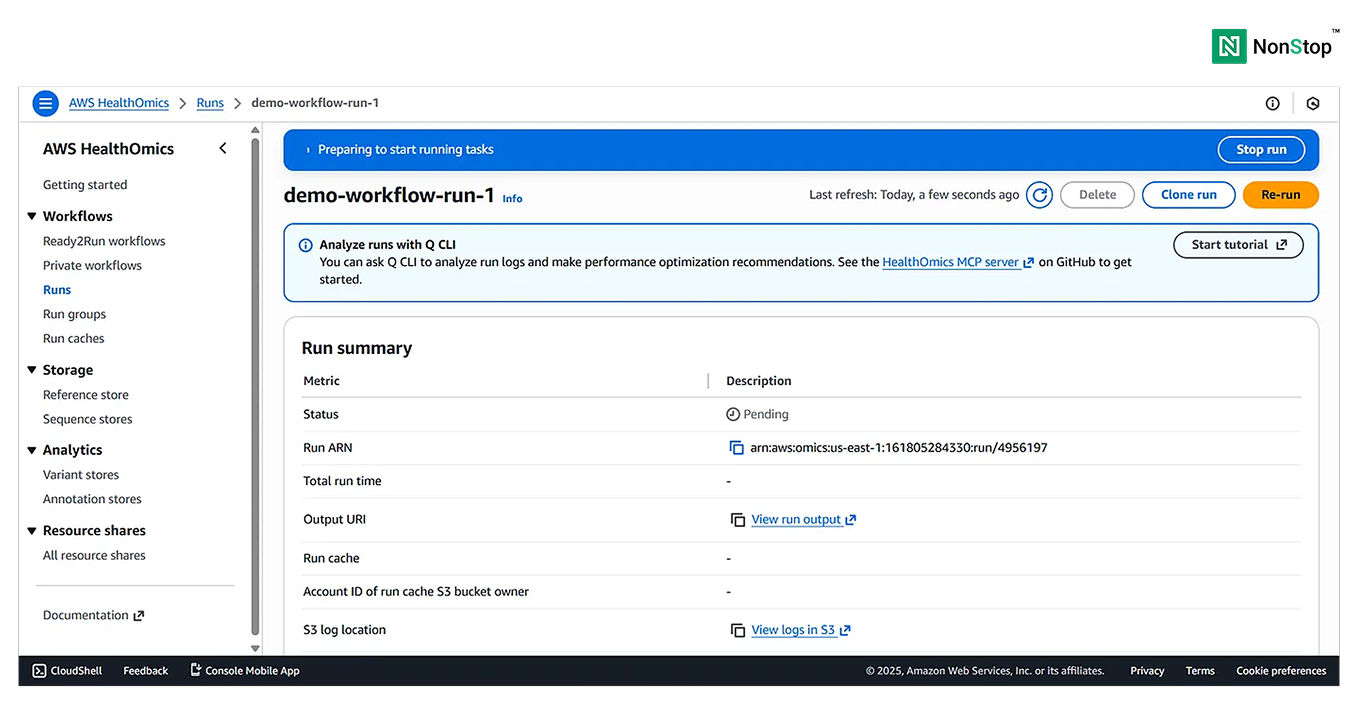
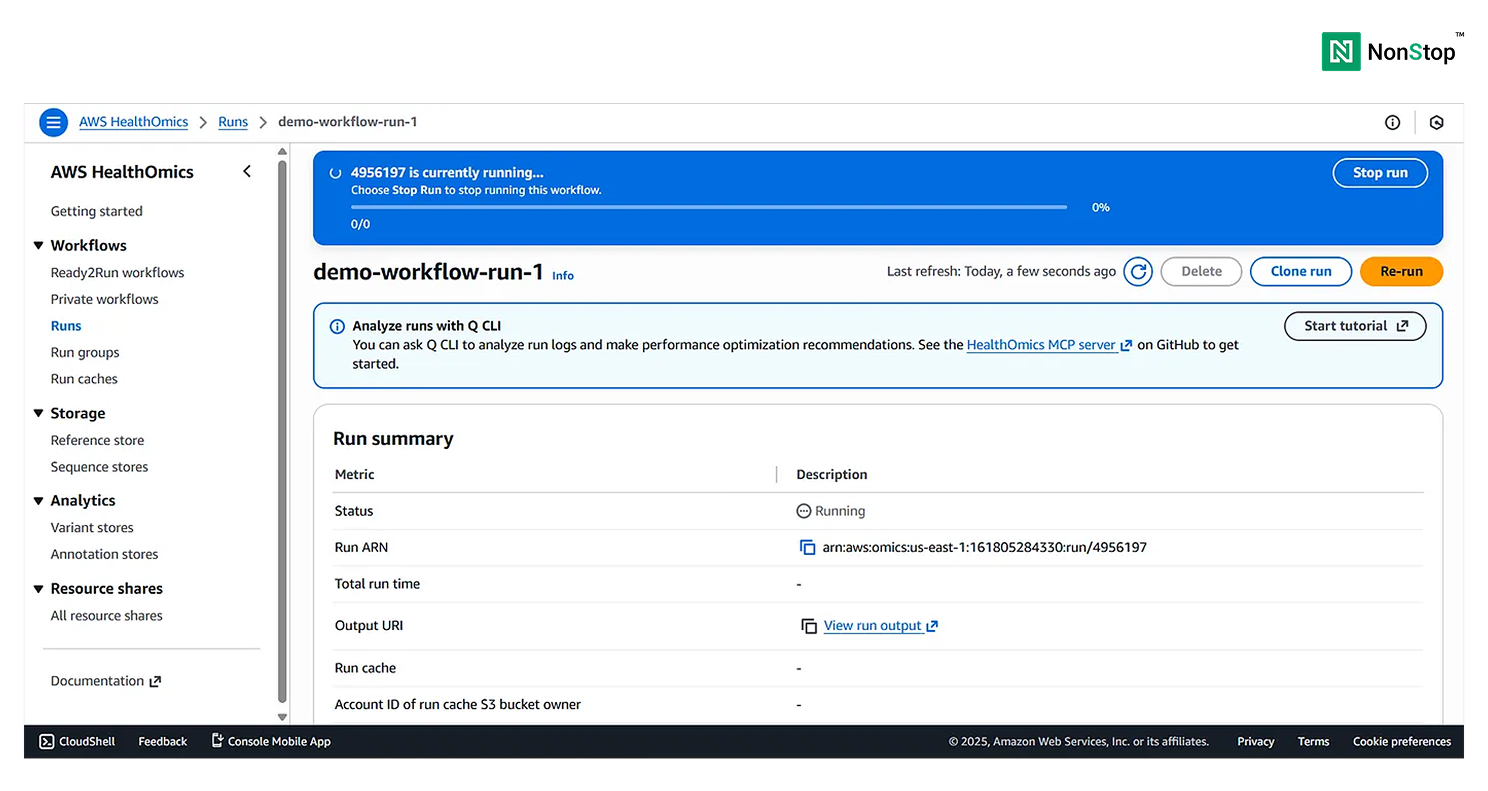
Step 4.4: Confirm the Successful Run
After the workflow finishes successfully, AWS HealthOmics displays a confirmation message.
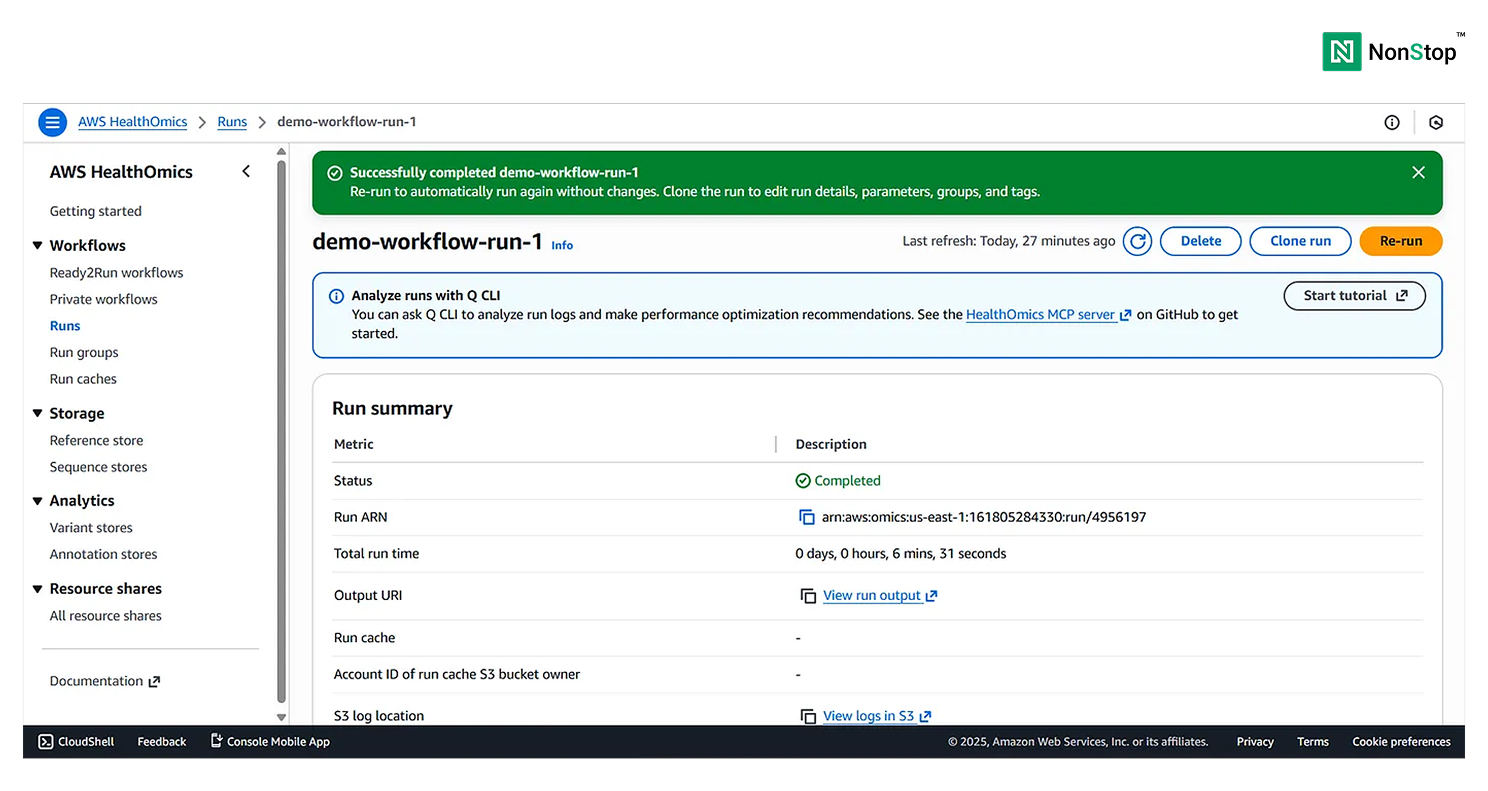
Review the run summary and task details at the bottom of the page.
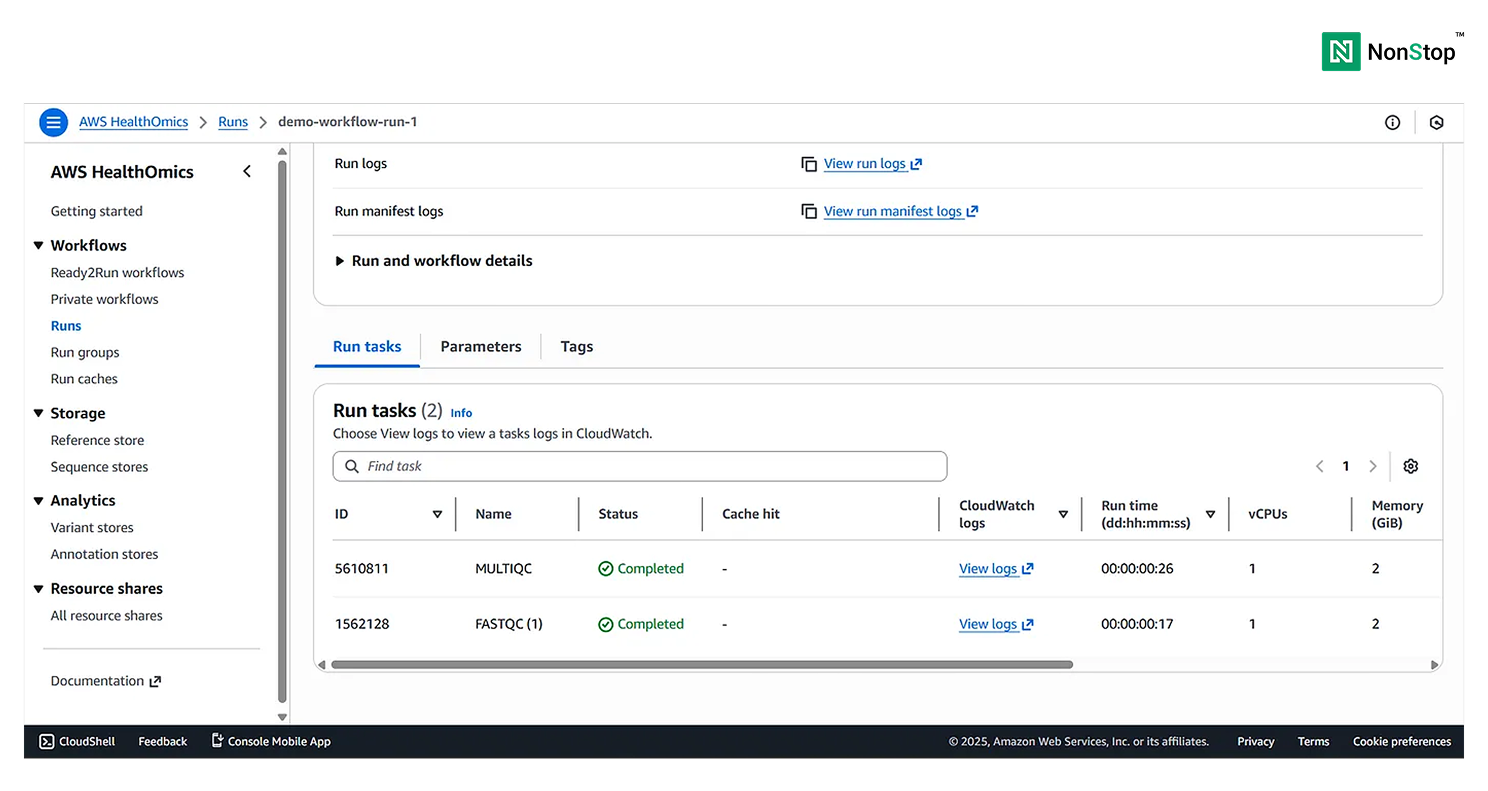
The workflow run is now complete, and the output files are available in the configured Amazon S3 bucket.
